What is LiDAR Data?
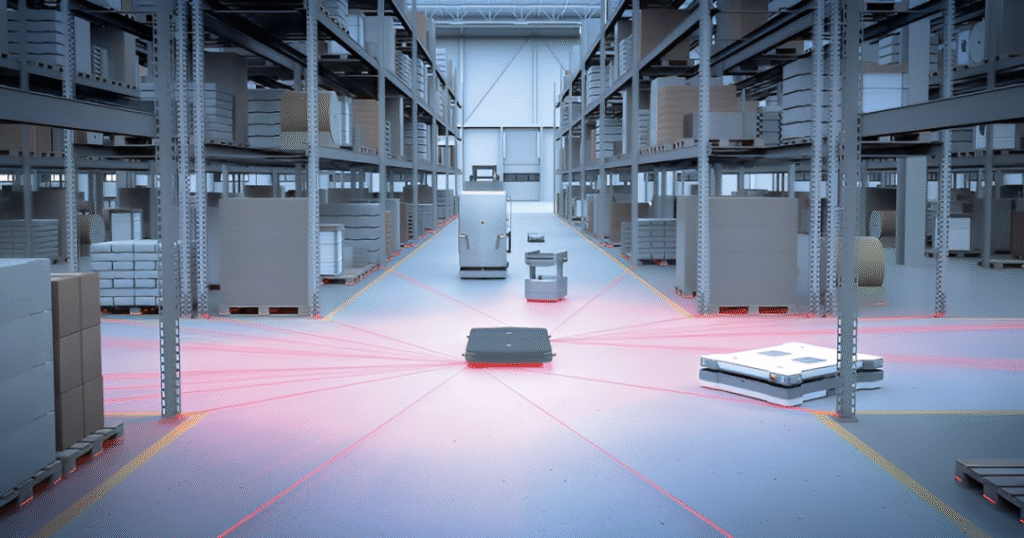
LiDAR stands for Light Detection and Ranging. It uses laser beams to measure distances to the ground or objects. These measurements create point clouds, which are big groups of points in 3D space. Each point has info like location, height, and sometimes color or strength of the laser return.
People use LiDAR for mapping land, checking forests, planning cities, and even self-driving cars. Free LiDAR data is out there from places like government sites, but it often has errors. That’s where cleanup comes in. Without it, your maps or models might look wrong or lead to bad choices.
Why Clean LiDAR Data?
Raw LiDAR data can have issues from weather, equipment, or the area scanned. Cleaning makes it more accurate and easy to use. For example, in farming, clean data helps spot soil levels better. In building work, it shows true ground shapes without junk points.
Cleaning also saves time later. Messy data can slow down software or give false results. Plus, with free LiDAR processing tools, anyone can do this without paying for fancy programs.
Common Problems in LiDAR Data
LiDAR point clouds aren’t perfect. Here are some typical issues:
Noise and Outliers
Noise means random points that don’t belong, like from rain or birds flying by. Outliers are points far from the main group, maybe from a bad laser reading. These make surfaces look bumpy when they should be smooth.
To learn how to filter LiDAR noise, start by spotting these in your data viewer.
Overlaps and Gaps
When scans overlap, you get double points in some spots. Gaps happen if the laser missed areas, like under thick trees.
Wrong Classifications
Points might be labeled wrong, like calling a tree “ground.” This messes up models.
File Size Issues
Big files slow things down. Cleanup often includes thinning points without losing key details.
Top Free Tools for LiDAR Data Cleanup
Many free tools handle LiDAR cleanup. I picked these based on what works well for beginners and pros. They focus on noise removal, sorting points, and basic workflows.
CloudCompare
CloudCompare is a free, open-source program for working with 3D point clouds. It runs on Windows, Mac, and Linux. You can download it from cloudcompare.org.
Key features for cleanup:
- Tools to cut, filter, and sort points.
- Noise filters to remove outliers.
- Ways to color points by height or type for easy spotting of issues.
For a LiDAR point cloud cleanup tutorial, try this: Load your LAS file by dragging it in. Use the CSF filter to split ground from other points. Set slope processing on, cloth resolution to 0.1, and threshold to 0.2. Run it a few times, doubling values each time. Check results by turning layers on and off.
Then, use the Statistical Outlier Removal (SOR) filter. Set it to check 6 neighbors and remove points 1 standard deviation away. Follow with the noise filter at default settings. This can cut your point count but makes data cleaner.
Merge cleaned parts back together. Export as LAS or LAZ. Tips: Undo up to 10 steps if you make a mistake. For big files, crop first to test on a small area.
CloudCompare is great for visual work. It’s not as fast for huge datasets, but free and user-friendly.
PDAL (Point Data Abstraction Library)
PDAL is a free library for handling point clouds. It’s command-line based, so good for scripts. Download from pdal.io.
Features:
- Reads and writes many formats like LAS, LAZ.
- Filters for noise, thinning, and sorting.
- Pipelines to chain steps.
For cleanup, use filters like “outlier” or “smrf” for ground sorting. Example pipeline in JSON:
{
“pipeline”: [
“input.las”,
{
“type”: “filters.outlier”,
“method”: “statistical”,
“mean_k”: 8,
“multiplier”: 3
},
{
“type”: “filters.smrf”
},
“clean.las”
]
}
Run with pdal pipeline yourfile.json. This removes noise then sorts ground points.
PDAL works well with other tools like QGIS. It’s strong for batch jobs but needs some coding knowledge.
Whitebox GAT
Whitebox Geospatial Analysis Tools is free and open-source. Get it from jblindsay.github.io/ghrg/Whitebox.
Features:
- Makes DEMs from points.
- Filters and summaries.
- Converts formats.
For cleanup, drop LAS into the map. Use LiDAR Point Density or Histogram to spot issues. Then, apply interpolation tools to fill gaps or remove noise. Example: Use Adaptive TIN for smooth surfaces.
It’s like a simple GIS, with layers and tools in one window. Good for starters, but check inputs carefully as it can be picky.
FUSION/LDV
From the USDA Forest Service, FUSION is free for Windows. Download from forsys.cfr.washington.edu/fusion.
Features:
- Views and analyzes forest data.
- Makes canopy models.
- Basic filters.
For cleanup, use commands to clip or thin points. It’s more for trees, but helps remove vegetation noise. Workflow: Load data, run ground filter, export clean points.
Strong for nature work, less for cities.
QGIS with Plugins
QGIS is a free GIS program. Add LAStools or PDAL plugins for LiDAR.
Features:
- Views layers.
- Runs filters via plugins.
Install plugin, then use tools like lasground for sorting. Combine with maps for context.
This setup turns QGIS into a full free LiDAR processing tool.
Step-by-Step Workflow to Clean LiDAR Data
Here’s a full guide using free tools. I’ll use CloudCompare and PDAL examples, as they cover most needs.
Step 1: Get Your Data
Download free LiDAR from sites like USGS or OpenTopography. Files are often LAS or LAZ.
Step 2: Load and Check Data
In CloudCompare, drag file in. Look at stats: point count, bounding box. Color by height to see outliers.
In PDAL, use pdal info input.las for quick stats.
Step 3: Remove Noise
How to filter LiDAR noise: In CloudCompare, apply SOR filter (6 neighbors, 1 dev). Then noise filter.
In PDAL, use filters.outlier in a pipeline.
Check by viewing: Zoom in, delete manual if needed.
Step 4: Sort Ground Points
Use CSF in CloudCompare: Set params, run, merge ground layer.
In PDAL, filters.smrf or pmf for ground.
Step 5: Fix Classifications
In CloudCompare, add scalar field “classification.” Set ground to 2, others to 0-18 as needed.
In QGIS, use plugins for auto-sort.
Step 6: Thin and Optimize
Reduce points: In CloudCompare, subsample. In PDAL, filters.voxelcenternearestneighbor.
Step 7: Export and Test
Save as LAZ for smaller size. Make a DEM: In Whitebox, use to raster tool.
Test by loading in another viewer.
This workflow takes 30 mins for small files, hours for big ones. Adjust based on your data.
Tips and Best Practices
- Start small: Test on a crop to save time.
- Backup raw data: Don’t overwrite originals.
- Use multiple tools: CloudCompare for visual, PDAL for auto.
- Hardware: Need good RAM for big files.
- Common mistakes: Wrong params in filters – start low.
- For pros: Script in Python with PDAL for repeats.
Case Studies
In forestry, clean data shows tree heights better. One user filtered noise from drone LiDAR, improving farm maps by 20%.
In cities, remove car points for true roads.
Future of Free LiDAR Tools
Tools keep getting better. CloudCompare adds plugins often. PDAL grows with community.
For more interesting and informational blogs please visit our website Lidarmos
Conclusion
Cleaning LiDAR data is key for good results. With these free tools and workflow, you can do it yourself. Try CloudCompare first – it’s easy.